By: CS2103AUG2017-T09-B2 Since: AUG 2017 Licence: MIT

- 1. Introduction/Product overview
- 2. About
- 3. Quick Start
- 4. Features
- 5. Commands
- 5.1. Viewing help :
help - 5.2. Adding a person:
add - 5.3. Listing all persons :
list - 5.4. Editing a person :
edit - 5.5. Locating persons by name:
find - 5.6. Deleting a person :
delete - 5.7. Selecting a person :
select - 5.8. Adding a meeting:
addmeeting - 5.9. Deleting a meeting:
deletemeeting - 5.10. Selecting a meeting :
selectmeeting - 5.11. Listing all meetings :
listmeeting - 5.12. Editing a meeting :
editmeeting - 5.13. Locating meetings by name:
findmeeting - 5.14. Locating meetings with a particular person:
findexactmeeting - 5.15. Listing entered commands :
history - 5.16. Undoing previous command :
undo - 5.17. Redoing the previously undone command :
redo - 5.18. Clearing all entries :
clear - 5.19. Exiting the program :
exit - 5.20. Saving the data
- 5.1. Viewing help :
- 6. FAQ
1. Introduction/Product overview
The ScheduBook is an application that helps students like you create and store a list of contacts and also helps you schedule your meetings so that you can better manage your time with your friends, peers or even your professors or teachers. You can use Schedubook to remind you of a certain meeting you have on a day and Schedubook will further provide you with the relevant information and the location of the scheduled meeting.
2. About
This user guide provides an overview of all commands that you can use in ScheduBook to set up or schedule your meetings and shows you how to get started using ScheduBook.
This user guide gives you the information of how the urgency of your scheduled meetings are presented to you.
All commands are explained and demonstrated with examples that shows you the results of each command input by you.
3. Quick Start
-
Ensure you have Java version
1.8.0_60or later installed in your Computer.Having any Java 8 version is not enough.
This app will not work with earlier versions of Java 8. -
Download the latest
addressbook.jarhere. -
Copy the file to the folder you want to use as the home folder for your Address Book.
-
Double-click the file to start the app. The GUI should appear in a few seconds.
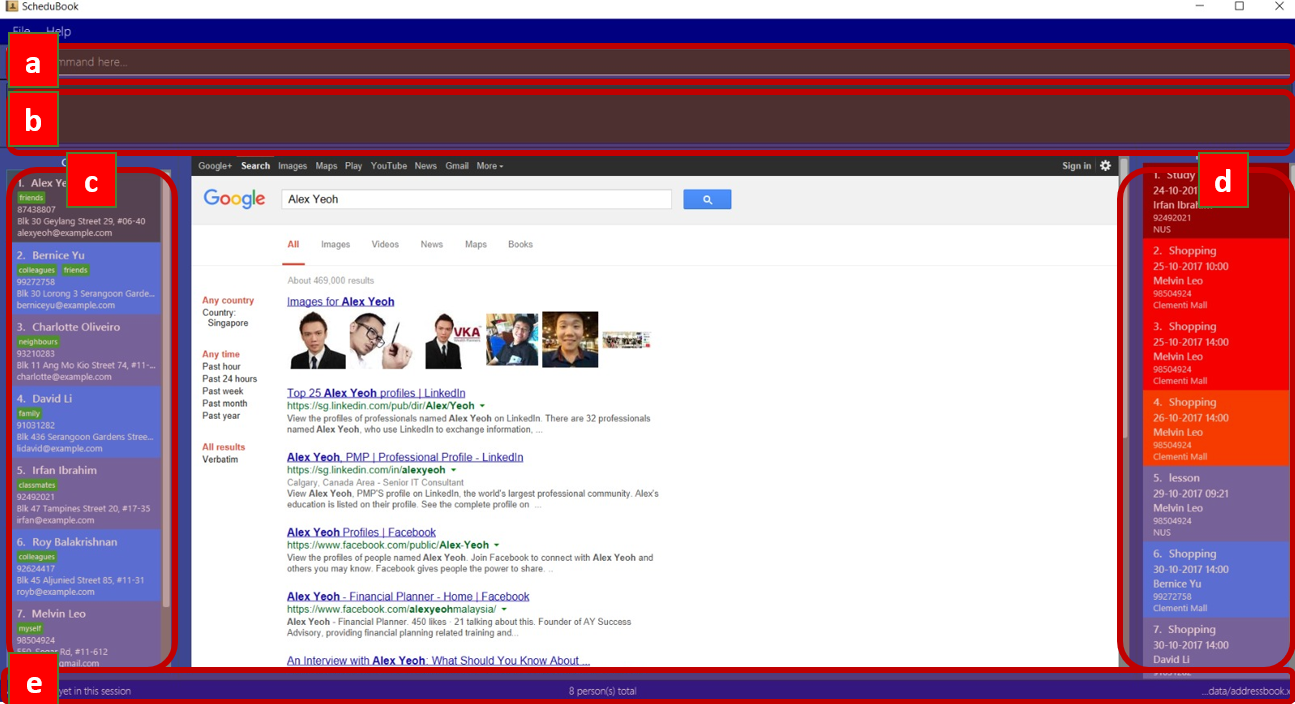
Figure 3.1: Application GUI
a. Command Box b. Message Box
c. Contacts List d. Meetings List
e. Footer bar -
Type the command in the command box and press Enter to execute it.
e.g. typinghelpand pressing Enter will open the help window. -
Some example commands you can try:
-
list: lists all contacts -
addn/John Doe p/98765432 e/johnd@example.com a/John street, block 123, #01-01: adds a contact namedJohn Doeto the Address Book. -
delete3: deletes the 3rd contact shown in the current list -
addmeetingi/2 n/Shopping d/01-01-01-2020 12:00 l/Orchard Roadadds a meeting with the 2nd contact shown in the current list -
exit: exits the application
-
-
Refer to the Features section below for more details of each command.
4. Features
4.1. Home Page
When you open ScheduBook, you are greeted with a background image which is your home page.

Figure 4.1: Home Page
4.2. Meeting Card
The meeting card provides you the information of the meetings that you have scheduled. As you can see from the Figure 2, the NameMeeting, DateTime, PersonToMeet, PhoneNum and Location are all shown to remind you of your certain meeting.

Figure 4.2.1: Meeting Card
4.3. Meeting Card Colours
To show you the nearing of upcoming meetings, colours are assigned to the card by comparing the date and time in the meeting class to the date and time of the log in. The meanings of the different assigned colours are:
-
darkRed: Meeting is in next 24 hours.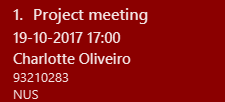
Figure 4.3.1: Dark red Meeting Card
-
red: Meeting is in next 48 hours.
Figure 4.3.2: Red Meeting Card
-
orangeRed: Meeting is in next 72 hours.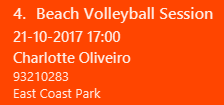
Figure 4.3.3: Orange Meeting Card
4.4. Meeting Alerts
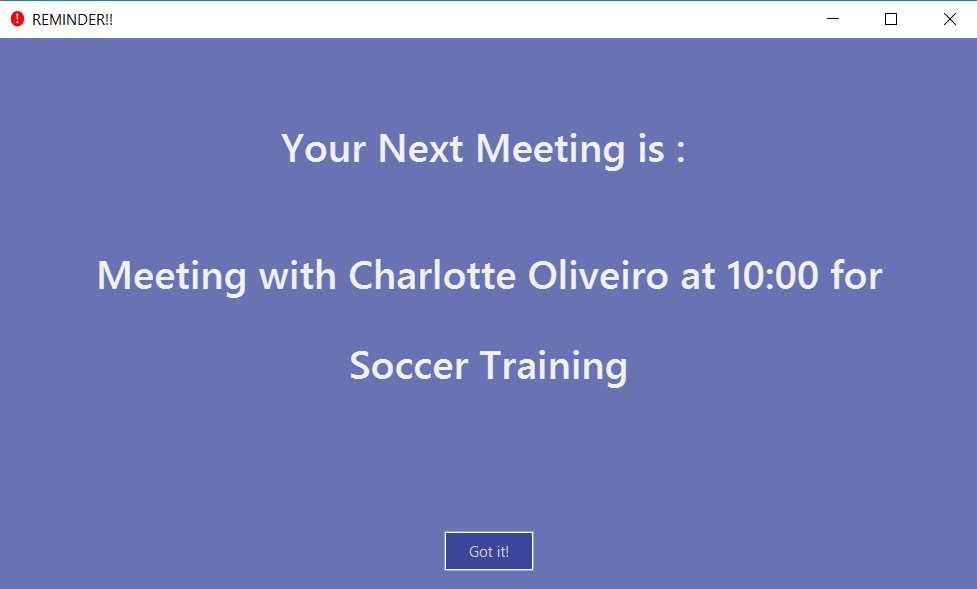
Figure 4.4.1: Pop-up Notification
-
Upon opening up the application, if there is a meeting(s) on the same day, you will be reminded via a pop-up message.
-
As shown to you in the figure above, the information regarding the next upcoming meeting is displayed in the message.
4.5. Auto Deletion of Meeting Cards
Upon start up of the application, your meetings which have already passed the current time of your log in date and time will be deleted and no longer be shown.
4.6. Loading of Meeting Location in Google Maps
Upon selecting a meeting, the location of your meeting will be automatically entered as the destination in Google Maps. You can then obtain the detailed navigational route and directions.
The screenshot below shows you the loaded Google Maps upon entering the selectmeeting command.
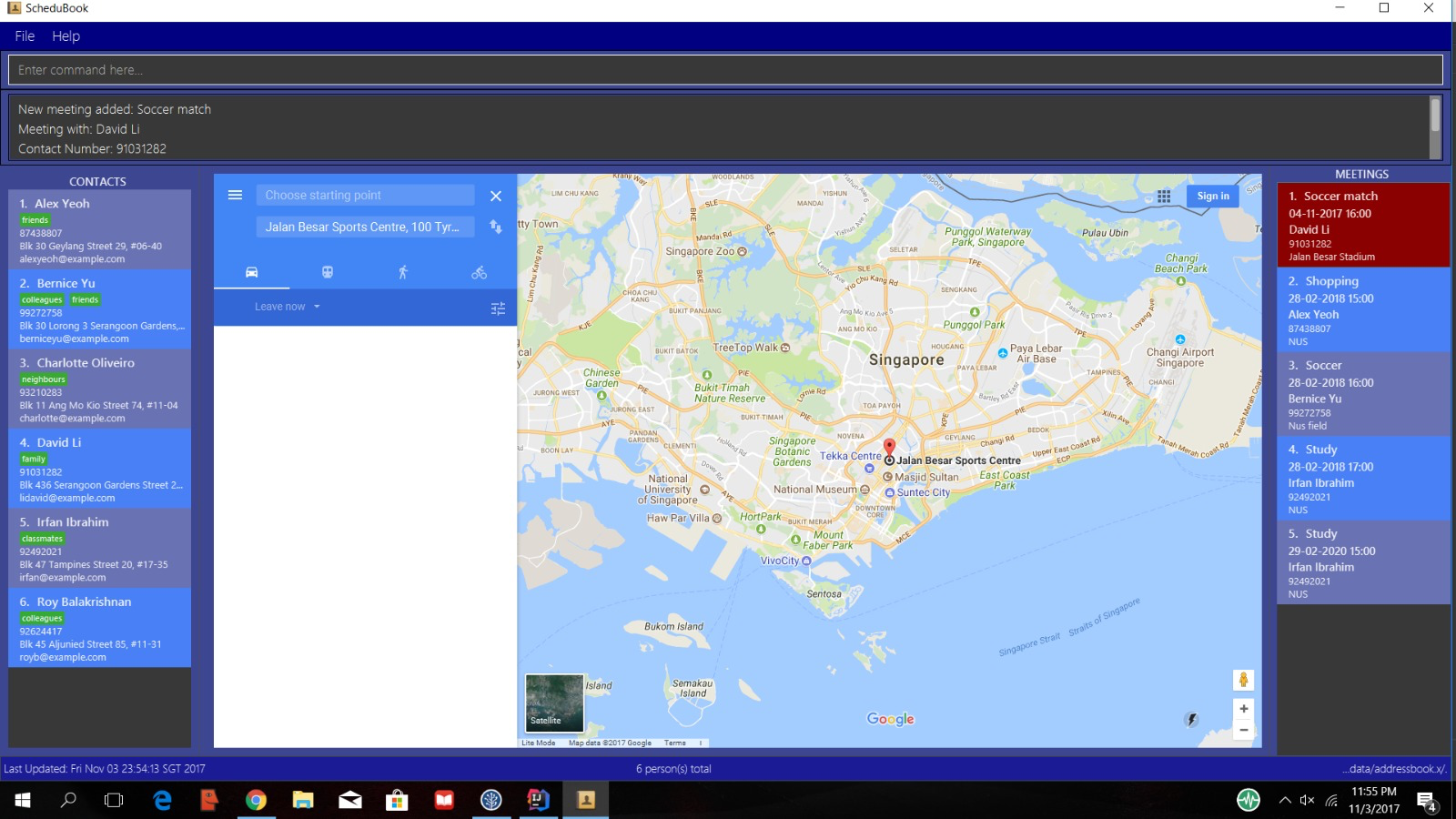
Figure 4.6.1: GoogleMaps
5. Commands
Command Format
-
Words in
UPPER_CASEare the parameters to be supplied by the user e.g. inadd n/NAME,NAMEis a parameter which can be used asadd n/John Doe. -
Items in square brackets are optional e.g
n/NAME [t/TAG]can be used asn/John Doe t/friendor asn/John Doe. -
Items with
… after them can be used multiple times including zero times e.g.[t/TAG]…can be used ast/friend,t/friend t/familyetc. -
Parameters can be in any order e.g. if the command specifies
n/NAME p/PHONE_NUMBER,p/PHONE_NUMBER n/NAMEis also acceptable. -
Abbreviations in parenthesis before the command word represents the alias used for the corresponding commands. e.g. in
(am)addmeeting,amis the short form notation for theaddmeetingcommand.
5.1. Viewing help : help
Format: (h)help
5.2. Adding a person: add
Adds a person to the address book
Format: (a)add [n/NAME] [p/PHONE_NUMBER] [e/EMAIL] [a/ADDRESS] [t/TAG]…
| A person can have any number of tags (including 0) |
Examples:
-
add n/John Doe p/98765432 e/johnd@example.com a/John street, block 123, #01-01 -
add n/Betsy Crowe t/friend e/betsycrowe@example.com a/Newgate Prison p/1234567 t/criminal
5.3. Listing all persons : list
Shows a list of all persons in the address book.
Format: (l)list
5.4. Editing a person : edit
Edits an existing person in the address book.
Format: (e)edit INDEX [n/NAME] [p/PHONE] [e/EMAIL] [a/ADDRESS] [t/TAG]…
Examples:
-
edit 1 p/91234567 e/johndoe@example.com
Edits the phone number and email address of the 1st person to be91234567andjohndoe@example.comrespectively. -
edit 2 n/Betsy Crower t/
Edits the name of the 2nd person to beBetsy Crowerand clears all existing tags.
|
Editing a person’s name or phone number also updates the details of the person in meetings with people of the same name. |
Undo-ing an edit command WILL NOT undo changes made to meetings
5.5. Locating persons by name: find
Finds persons whose names contain any of the given keywords.
Format: (f)find KEYWORD [MORE_KEYWORDS]
Examples:
-
find John
ReturnsjohnandJohn Doe -
find Betsy Tim John
Returns any person having namesBetsy,Tim, orJohn
5.6. Deleting a person : delete
Deletes the specified person from the address book.
Format: (d)delete INDEX
Examples:
-
list
delete 2
Deletes the 2nd person in the address book. -
find Betsy
delete 1
Deletes the 1st person in the results of thefindcommand.
5.7. Selecting a person : select
Selects the person identified by the index number used in the last person listing.
Format: (s)select INDEX
Examples:
-
list
select 2
Selects the 2nd person in the address book. -
find Betsy
select 1
Selects the 1st person in the results of thefindcommand.
| When there is a selected person, a deletion of any person will result in the reselection of the next available person, causing the opening of another pop-up window |
5.8. Adding a meeting: addmeeting
If you need to schedule a meeting with the one of your contact in your contact list, you can add meeting with him so that the meeting will be shown at the meeting list panel and when the deadline of the meeting approaches, you will be reminded!
Adds a meeting to the address book
Format: (am)addmeeting [i/INDEXES] [n/NAME] [d/DATE_TIME] [l/LOCATION] [t/IMPORTANCE]
| Input format for Date and Time is "DD-MM-YYYY HH:MM" |
Input format for IMPORTANCE is 0-2.
|
-
Adds meeting with person at the specified
INDEX. The index refers to the index number shown in the last person listing. The index *must be a positive integer 1,2,3, … -
The
IMPORTANCEof the meeting will be :-
Most important : 2
-
Normal :1
-
Least important: 0
-
-
Creation of group meetings
-
You can create meetings with different people with their individual index from the contact list.
Meeting Cardlike Figure 6A will be created. This meeting card consists of theNameandPhoneof the person you are meeting with. You just have to scroll on thePersoninformation on the card.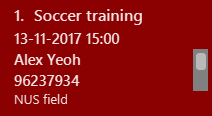
Figure 5.8.1: Meeting Cards for Group Meeting
-
-
When you are attempting to add a meeting with the same date and time as a pre-existing one in ScheduBook, the following error will be shown, preventing you from creating 2 different meetings with exactly the same date and time

Figure 5.8.2: Clash Meeting Error
Examples:
-
addmeeting i/1 n/Study d/31-10-2017 21:00 l/School of Computing, NUS t/1 -
addmeeting i/1 2 3 n/Project meeting d/27-12-2017 08:30 l/iCube Auditorium, NUS t/2
5.9. Deleting a meeting: deletemeeting
deletemeeting by index of meeting in the Meeting
Deletes a meeting in the address book at the specified INDEX
Format: (dm)deletemeeting INDEX
| INDEX must be a positive integer |
| An overdue meeting will be automatically deleted when you open Schedubook |
Examples:
-
deletemeeting 1 -
deletemeeting 2
5.10. Selecting a meeting : selectmeeting
You can use this command to search for the location of your destination of the meeting on GoogleMap. From here, you can also add your current location to find out more about the nearest/fastest route to your destination.
Selects the meeting identified by the index number used in the last meeting listing.
Format: (sm)selectmeeting INDEX
Figure 5.10.1: Google Map
Examples:
-
listmeeting
selectmeeting 5
Selects the 5th meeting in the address book. -
findmeeting Alex
selectmeeting 1
Selects the 1st meeting in the results of thefindmeetingcommand.
5.11. Listing all meetings : listmeeting
You can show all the list out of your scheduled meetings after you have used findmeeting or findexactmeeting commands.
Shows a list of all meetings in the address book.
Format: (lm)listmeeting
| Meetings are always sorted according to the closest date |
5.12. Editing a meeting : editmeeting
Allows you to edits an existing meeting in the address book.
Format: (em)editmeeting INDEX [n/NAME] [d/DATETIME] [l/LOCATION]
-
Edits the meeting at the specified
INDEX. The index refers to the index number shown in the last person listing of your contact list. The index must be a positive integer 1, 2, 3, … -
You must provide at least one of the optional fields.
-
Existing values will be updated to the values that you input.
-
Once a meeting is successfully edited, you will be shown the following message

Figure 5.12.1: Successful edited Meeting
Examples:
-
editmeeting 1 n/Shopping l/Clementi
Edits the name and location of the 1st meeting to beShoppingandClementirespectively. -
em 3 d/31-12-2017 00:00
Edits the date of the 3rd meeting in the meeting list to the respective date.
5.13. Locating meetings by name: findmeeting
Finds meetings whose names contain any of the given keywords.
Format: (fm)findmeeting KEYWORD [MORE_KEYWORDS]
Examples:
-
findmeeting John
Returns meetings withJohnandJohn Doe -
findmeeting Study Shopping
Returns any meeting having namesStudyorShopping -
findmeeting Shopping Study John
Returns any meeting havingJohnas the person to meet and any meetings having namesStudyandShopping
5.14. Locating meetings with a particular person: findexactmeeting
Finds and lists to you the meeting(s) with people whose names match exactly with the phrase entered.
Format: (fem)findexactmeeting PHRASE
Example:
-
findexactmeeting John Tan
returns only the meetings with people namedJohn Tan
Figure 5.14.1: Find exact meeting john tan
5.15. Listing entered commands : history
Lists all the commands that you have entered in reverse chronological order.
Format: (his)history
|
Pressing the ↑ and ↓ arrows will display the previous and next input respectively in the command box. |
5.16. Undoing previous command : undo
Restores the address book to the state before the previous undoable command was executed.
Format: (u)undo
|
Undoable commands: those commands that modify the address book’s content ( |
Examples:
-
delete 1
list
undo(reverses thedelete 1command) -
select 1
list
undo
Theundocommand fails as there are no undoable commands executed previously. -
delete 1
clear
undo(reverses theclearcommand)
undo(reverses thedelete 1command)
5.17. Redoing the previously undone command : redo
Reverses the most recent undo command.
Format: (r)redo
Examples:
-
delete 1
undo(reverses thedelete 1command)
redo(reapplies thedelete 1command) -
delete 1
redo
Theredocommand fails as there are noundocommands executed previously. -
delete 1
clear
undo(reverses theclearcommand)
undo(reverses thedelete 1command)
redo(reapplies thedelete 1command)
redo(reapplies theclearcommand)
5.18. Clearing all entries : clear
Clears all entries from the address book.
Format: (c)clear
5.19. Exiting the program : exit
Exits the program.
Format: exit
5.20. Saving the data
Address book data are saved in the hard disk automatically after any command that changes the data.
There is no need to save manually.
6. FAQ
Q: How do I transfer my data to another Computer?
A: Install the app in the other computer and overwrite the empty data file it creates with the file that contains the data of your previous Address Book folder.
6.1. Command Summary
| COMMAND | ALIAS | PARAMETER | EXAMPLE |
|---|---|---|---|
Add |
a |
[n/NAME] [p/PHONE_NUMBER] [e/EMAIL] [a/ADDRESS] [t/TAG]… |
add n/James Ho p/22224444 e/jamesho@example.com a/123, Clementi Rd, 1234665 t/friend t/colleague |
Clear |
c |
- |
clear |
Delete |
d |
INDEX |
delete 3 |
Edit |
e |
INDEX [n/NAME] [p/PHONE_NUMBER] [e/EMAIL] [a/ADDRESS] [t/TAG]… |
edit 2 n/James Lee e/jameslee@example.com |
Find |
f |
KEYWORD [MORE_KEYWORDS] |
find James Jake |
Help |
h |
- |
help |
History |
his |
- |
history |
List |
l |
- |
list |
Redo |
r |
- |
redo |
Select |
s |
INDEX |
select 2 |
Undo |
u |
- |
undo |
Add Meeting |
am |
[i/INDEX] [n/NAME] [d/DATE_TIME] [l/LOCATION] [t/IMPORTANCE] |
addmeeting i/5 n/Shopping d/22-11-2017 l/Vivo City t/1 |
Delete Meeting |
dm |
INDEX |
deletemeeting 8 |
Edit Meeting |
em |
INDEX [n/NAME] [d/DATETIME] [l/LOCATION] |
editmeeting 7 n/Rolls Royce d/18-12-2017 19:00 l/Beauty World Plaza |
Find Meeting |
fm |
KEYWORD [MORE_KEYWORDS] |
findmeeting Shopping Study Jake |
Find Exact Meeting |
fem |
[KEYWORDS] |
findmeeting Alex Yeoh |
List Meeting |
lm |
- |
listmeeting |
Select Meeting |
sm |
INDEX |
selectmeeting 7 |